How to Use Green Screen in CapCut (Chroma Key Guide) 2026
Green screen is one of the most fun and useful tools in CapCut. It lets you remove a solid color background and place yourself or any object in a new scene. You can use it for reaction videos, memes, tutorials, product ads and much more.
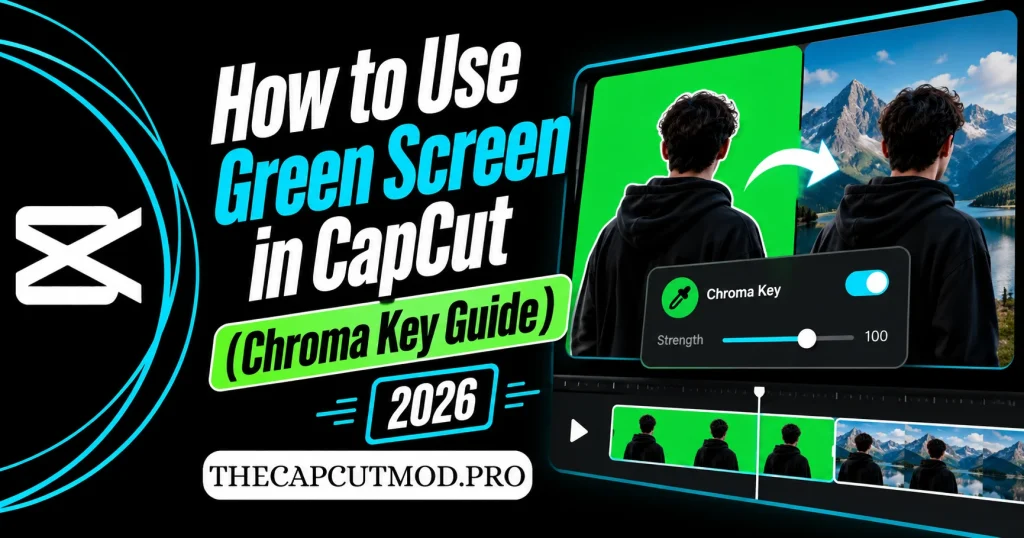
In this guide, you will learn how to use the CapCut green screen feature step by step. We cover the Chroma Key tool, the AI background remover and the best settings for a clean result. We also share simple tips to fix rough edges and color spill.
What Is Green Screen in CapCut?
Green screen is a video trick where you film a subject in front of a solid green or blue background. The editor then removes that color and shows a new background in its place. In CapCut, the tool that does this is called Chroma Key.
CapCut also has a Remove Background tool that works without a green screen. It uses AI to find the person in your video and cut them out. Each tool has its own strengths, so it helps to know when to use which one.
| Tool | How It Works | Best For |
|---|---|---|
| Chroma Key | Removes one chosen color from the video | Clips shot in front of a green or blue screen |
| Remove Background (Auto) | AI finds and cuts out the person | Clips with a normal background |
| Custom Removal | You brush over the area to keep | Objects or tricky shapes |
What You Need Before You Start
A green screen edit needs two layers in CapCut. The bottom layer is your new background, and the top layer is your green screen clip. You need both clips ready in your gallery before you start.
- A Background Clip or Image: This is the new scene, such as a city, a beach or a game screen.
- A Green Screen Clip: This is your subject in front of a green or blue background.
- The Latest CapCut Version: New versions have better cutout quality.
You can film your own green screen clip or use one from CapCut’s stock library. The library has many free green screen clips, such as explosions, animals and memes. Tap Library when you add media to browse them.
How to Use Chroma Key in CapCut on Android and iPhone
This is the classic green screen method, and it gives the cleanest result with a proper green background. The steps are the same on Android and iPhone. Follow them in order for the best cutout.
Step 1: Add Your Background
- Open CapCut and tap New project.
- Select your background video or image.
- Tap Add to place it on the main timeline.
Step 2: Add the Green Screen Clip as an Overlay
- Tap Overlay in the bottom menu.
- Tap Add overlay and select your green screen clip.
- Use two fingers to resize the clip so it fills the screen.
Step 3: Apply Chroma Key
- Select the overlay clip on the timeline.
- Scroll the bottom menu and tap Remove BG or Cutout, then tap Chroma key.
- A color picker circle will appear on the screen.
- Drag the circle onto the green area of your clip.
- The green will turn see-through, and your background will show.
Step 4: Adjust the Intensity and Shadow
- Tap Intensity and slide it up until all the green is gone.
- Do not push it too far, or parts of your subject may disappear.
- Tap Shadow to smooth the edges around your subject.
- Tap the check mark to save.
Once you finish, play the video to check the result. Look closely at the hair, hands and edges, since these areas show problems first. If you see green bits, raise the intensity a little more.
How to Remove Background Without a Green Screen
Not everyone has a green screen at home, and that is okay. CapCut’s AI background remover can cut out a person from almost any video. The result is not always as clean as Chroma Key, but it works well for most clips.
- Add your background clip to the main timeline.
- Tap Overlay and add the video of the person.
- Select the overlay clip and tap Remove BG.
- Tap Auto removal and wait while CapCut processes the clip.
- Check the result and tap the check mark.
The AI works best when the person stands out clearly from the background. Plain walls and good lighting help a lot. Busy backgrounds with similar colors can confuse the AI and leave rough edges.
Custom Removal for Objects
If you want to cut out an object instead of a person, use Custom removal. Tap Remove BG, then Custom removal, and brush over the part you want to keep. CapCut will try to follow the object through the rest of the clip.
How to Use Green Screen in CapCut on PC
CapCut for Windows and Mac has the same tools with a bigger workspace. The larger screen makes it easier to check small details like hair and edges. The steps are a little different from mobile.
- Import your background and green screen clips into the media panel.
- Drag the background onto the main track.
- Drag the green screen clip onto a track above it.
- Select the top clip and open the Video panel on the right.
- Click Remove BG and turn on Chroma key.
- Use the color picker to select the green color.
- Adjust Strength and Shadow until the edges look clean.
The desktop version also has an auto removal option in the same panel. You can switch between the two to see which one looks better. For more on the desktop app, read our CapCut for PC guide.
Best Settings for a Clean Green Screen
The right settings make a big difference in the final result. Too little intensity leaves green patches, while too much eats into your subject. The table below gives a good starting point.
| Setting | Starting Value | What It Does |
|---|---|---|
| Intensity | 40 to 70 | Controls how much of the chosen color is removed |
| Shadow | 10 to 30 | Softens the edges around your subject |
| Scale | Fill the screen | Makes sure no edges of the overlay show |
| Opacity | 100 | Keeps your subject fully visible |
Every clip is different, so treat these values as a starting point only. Move the sliders slowly and watch the preview as you go. Always check the result on the full screen before you export.
Tips to Film a Better Green Screen Video
A clean edit starts with a clean recording. Even the best tools struggle with a poorly lit or wrinkled green screen. These simple tips will make your cutouts much sharper.
- Light the Screen Evenly: Shadows on the green create dark patches that are hard to remove.
- Keep Distance: Stand at least one meter in front of the screen to avoid green spill on your body.
- Avoid Green Clothes: Anything green on you will disappear along with the background.
- Smooth Out Wrinkles: Folds in the cloth create different shades of green.
- Use a High Resolution: Film in 1080p or 4K for sharper edges.
- Keep the Camera Still: A tripod makes the edit look more natural.
Creative Ideas for CapCut Green Screen
Once you learn the basics, you can use green screen in many creative ways. It is one of the best tools for fun and eye-catching content. Here are some ideas to try.
Reaction Videos
Place yourself in the corner of a video and react to what happens on screen. This format is huge on TikTok and YouTube Shorts. Use the AI remover if you do not have a green screen.
Travel Without Leaving Home
Put yourself in front of famous places, such as a beach, a mountain or a big city. This is a fun way to make jokes or tell stories. Pick a background with lighting that matches your clip.
Product Ads
Cut out a product and place it on a clean or branded background. This makes simple phone videos look like studio ads. It is a great trick for small online stores.
Memes and Special Effects
Use green screen clips from the CapCut library, such as explosions, animals or famous meme scenes. Remove the green and place the effect over your own video. This is a quick way to add humor and energy.
Clone Yourself
Film yourself in two different spots with the camera in the same place. Use the remove background tool to place both versions in one scene. The result looks like you have a twin.
Common Green Screen Problems and Fixes
Even with good settings, green screen edits can have small issues. Most of them are easy to fix with a few changes. Here are the problems users face most often.
Green Edges Around the Subject
This is called green spill, and it happens when green light reflects onto your subject. Raise the Shadow value to soften the edges. For future clips, stand further away from the green screen.
Parts of the Subject Disappear
Your intensity is too high, or your subject has green on them. Lower the Intensity slider until the subject looks solid again. Change any green clothes or props before you film next time.
Patches of Green Remain
Uneven lighting creates dark and light shades of green on the screen. Raise the intensity a little, or use the color picker on the darker green area. Better lighting will fix this for future recordings.
Chroma Key Option Is Missing
The Chroma Key tool only appears when you select an overlay clip. Make sure your green screen clip is on an overlay track, not the main track. Update CapCut if you still cannot find it.
Auto Removal Looks Rough
The AI struggles when the background is busy or has colors close to the subject. Film against a plain wall with good light for better results. You can also try Chroma Key if you can use a green screen.
For other editing problems, see our CapCut troubleshooting guide. It covers crashes, export errors and missing features. Each fix comes with simple steps you can follow in minutes.
Chroma Key vs Remove Background: Which Is Better?
Both tools are useful, but they fit different situations. Chroma Key gives sharper edges, while Remove Background is more flexible. Use the table below to pick the right one.
| Point | Chroma Key | Remove Background |
|---|---|---|
| Needs a Green Screen | Yes | No |
| Edge Quality | Very clean | Good, can be rough |
| Speed | Instant | Takes a few seconds |
| Works With Hair | Very well | Fair |
| Works on Objects | Yes | Yes, with custom removal |
| Best Use | Planned shoots | Quick edits and memes |
Frequently Asked Questions
Add your background to the main timeline, then add your green screen clip as an overlay. Select the overlay, tap Remove BG, then Chroma key, and pick the green color. Adjust the intensity and shadow until the edges look clean.
Chroma Key sits under the Remove BG or Cutout menu when you select an overlay clip. It does not appear for clips on the main track. Update the app if you cannot find it.
Yes, use the Auto removal option under Remove BG. CapCut’s AI will cut out the person from the background. It works best with plain backgrounds and good lighting.
Yes, Chroma Key and basic background removal are free in CapCut. Some advanced AI features may need a Pro plan in certain versions. The core green screen tool is free for all users.
Blurry edges usually come from a low-quality clip or a high shadow value. Film in higher resolution and lower the shadow setting a little. Good lighting also helps a lot.
Yes, Chroma Key works with any solid color, including blue. Just use the color picker on the blue area. Blue is a good choice if your subject wears green.
Yes, the desktop app has both Chroma Key and auto removal. Select the top clip and open the Remove BG section in the Video panel. The larger screen makes fine tuning easier.
CapCut has a free stock library with many green screen clips. Tap Library when you add media and search for “green screen”. You will find effects, animals, memes and more.
Final Thoughts
The CapCut green screen tool opens up a world of creative ideas for your videos. Chroma Key gives you clean results with a proper green background, while the AI remover works anywhere. With the right settings and a little practice, your edits will look sharp and professional.
Start with a simple test clip and play with the intensity and shadow sliders. Then try one of the creative ideas above to see what your audience enjoys most. For more easy guides, explore Thecapcutmod.pro, including our tutorials on CapCut keyframes and CapCut 3D zoom.